How to Add a Link to a Facebook Story
Add a clickable link to a Facebook story with the link sticker, or use 3 workarounds if your account doesn’t have it yet.

By Ayu Moz
Writer, Facebook Story Viewer
Last updated:
5 min read
To add a link to a Facebook story, tap the sticker icon in the story editor, choose Link, paste your URL and tap Done. The link sticker is available to Facebook Pages and a growing number of personal and professional mode profiles.
If your account doesn’t have it yet, you still have 3 workarounds. They’re all below, with the trade-offs of each.
How do you add a link sticker to a Facebook story?
You add a link sticker from the sticker tray in the Facebook app. If you need the basics of the editor first, here’s how to create a Facebook story.
- Tap Create story and pick a photo or video.
- Tap the sticker icon (the square smiley face) at the top.
- Tap Link.
- Paste your URL into the URL field. Tap Test link to check that it opens.
- Type a Custom sticker text if you want words instead of the web address, then tap Add.
- Drag the sticker where you want it.
- Tap Share to story.
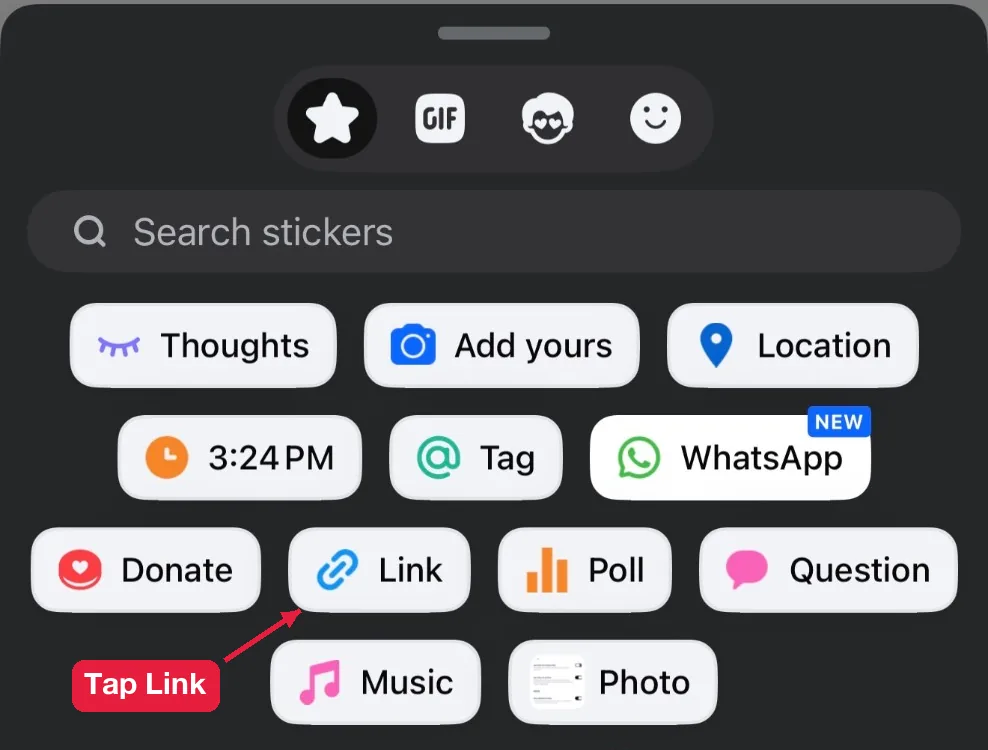
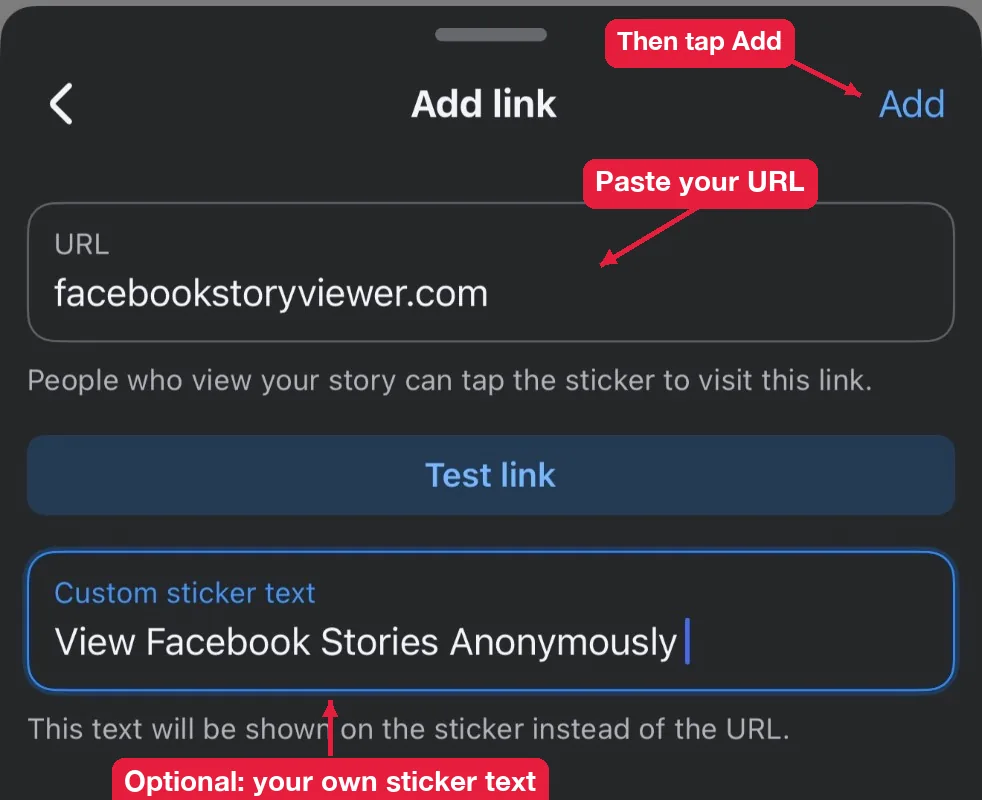
Viewers tap the sticker to open the page inside Facebook’s browser. The custom text replaces the web address on the sticker, so viewers see something like Shop now or Read the guide instead of a bare URL.
Keep the sticker text short and specific. “Get the recipe” gets more taps than “Click here,” because people know what they’ll get.
Place the sticker in the middle of the screen. The top and bottom edges get covered by your name and the reply bar.
Who can use the link sticker?
Facebook gives the link sticker to 3 types of accounts:
- Facebook Pages, for any business, creator or organization Page.
- Many profiles in professional mode, which is free to turn on from your profile menu.
- Some regular personal profiles, as Facebook keeps rolling it out by country and account.
So if you run a business, the fastest fix is posting from your Page instead of your personal profile. If you’re a creator, try turning on professional mode.
How do you add a link without the link sticker?
You add a link without the sticker by sharing something that already contains the link. There are 3 ways to do it.
1. Share a link post to your story
Post the link to your Feed first, then share that post to your story. Viewers tap the story to open the post, and then tap the link inside it.
- Post the link on your profile or find a post that has it.
- Tap Share below the post.
- Tap Your story.
It works on every account, but it takes 2 taps for viewers instead of 1. The full steps for both posts and Instagram content are in the guide on how to share a post to your Facebook story.
2. Use Facebook’s share URL
Facebook’s sharer page lets you share any link straight to your story from a browser.
- Open your browser and type: m.facebook.com/sharer.php?u= followed by your link.
- Log in if Facebook asks.
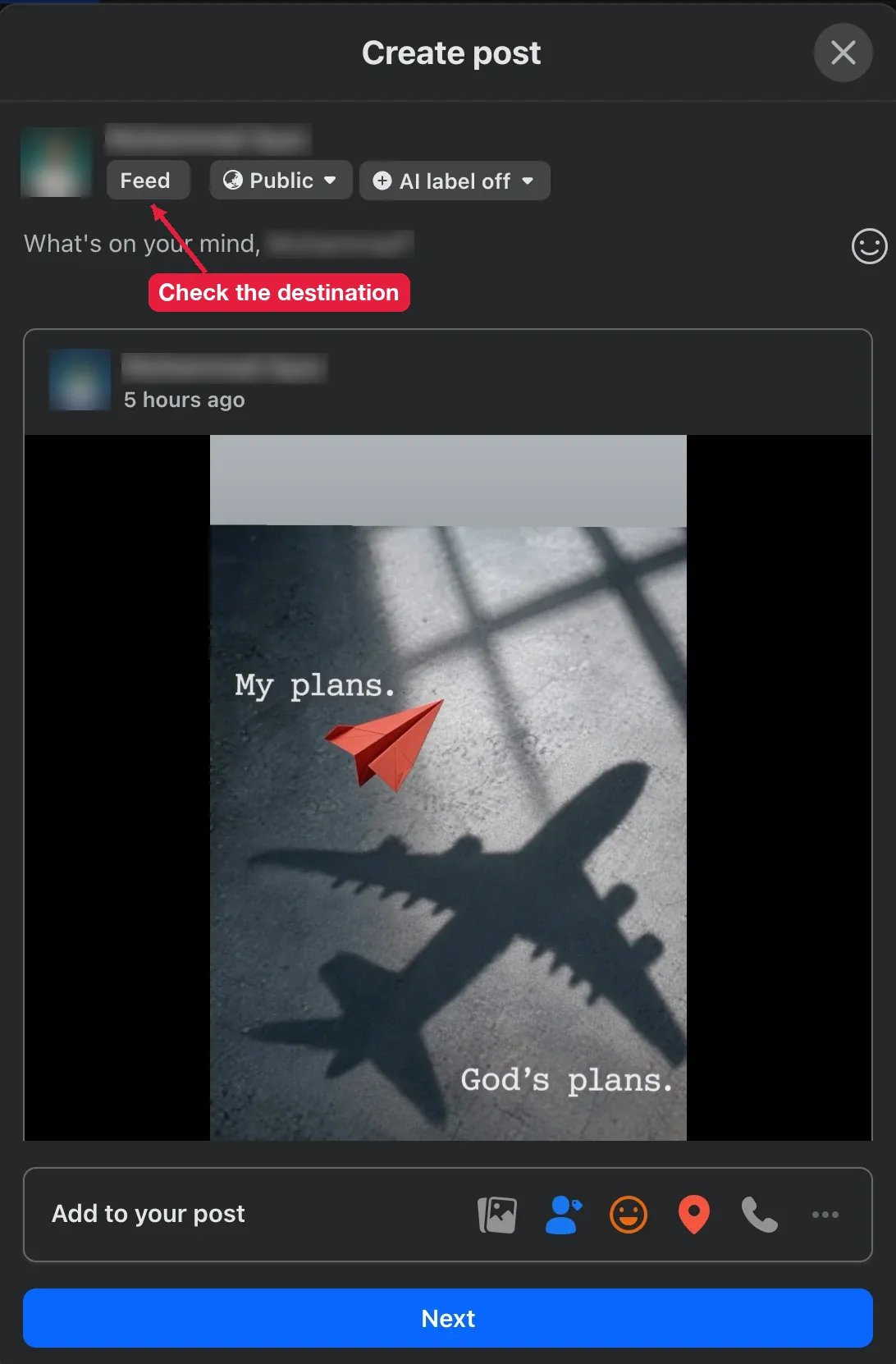
- Check the destination button next to your name. If it says Feed, tap it and choose Your story, then post.
It’s quick on a computer. But Facebook changes this page from time to time, so test it before you rely on it.
3. Post from Instagram and share to Facebook
Instagram gives the link sticker to every account. Add the link sticker to an Instagram story, and turn on sharing to your Facebook story before you post.
Results vary. On some accounts the link carries over to Facebook, on others it doesn’t. Post a test story and tap it from your Facebook account before you use this for anything important.
Which method is best? It depends on your account:
| Method | Works on personal profiles | Taps for viewers | Reliability |
|---|---|---|---|
| Link sticker | Some | 1 | High |
| Share a link post | Yes | 2 | High |
| Sharer URL | Yes | 2 | Medium |
| Instagram cross-post | Yes | 1 if it carries over | Low |
Why isn’t your Facebook story link working?
Your Facebook story link doesn’t work when the sticker isn’t available, when Facebook blocks the link, or when you’re trying from a computer.
The link sticker is missing
The sticker is missing because your account doesn’t have it yet. Update the Facebook app, then check again. If it’s still missing, post from a Page or professional mode profile.
There’s one sure way to get a link button on a story: pay for it. Facebook story ads always include a call to action button, like Learn more or Shop now.
Facebook blocked your link
Facebook blocks links it sees as spam, misleading or unsafe. Shortened links from services like bit.ly get flagged more often, so use your full URL. If your own domain gets blocked, check it in Meta’s Sharing Debugger and request a review.
Can you add a link from a computer?
Yes for Pages, not for profiles. In Meta Business Suite, the Create Story screen has an Add link button next to each photo or video, so Pages can add links from a computer. The story editor on facebook.com for personal profiles doesn’t have the link sticker, so use the Facebook app on your phone or the sharer URL method above.
Can viewers see where the link goes?
Yes. The sticker shows either the website address or your custom text, and Facebook opens the page in its own browser with the address bar visible. That’s one more reason to use your real domain instead of a shortened link.
How do you track clicks on a story link?
You track clicks by adding UTM tags to your URL, like ?utm_source=facebook&utm_medium=story. Your analytics tool then shows every visit from the story. Pages also see story insights in Meta Business Suite. Link clicks are one of the numbers to watch in your Facebook story strategy for Pages.