How to Create a Facebook Story on Your Profile, Page or Business Account
Post a Facebook story from your profile, a Page or Meta Business Suite, on your phone or computer. Plus how to put multiple photos in one story.

By Ayu Moz
Writer, Facebook Story Viewer
Last updated:
5 min read
A Facebook story is a photo, video or text post that shows at the top of the Feed for 24 hours and then disappears. To create one, tap Create story at the top of your Feed, pick a photo, video or text, and tap Share to story.
The steps change a little for Pages, business accounts and computers. All 4 versions are below, plus how to fit several photos into one story.
How do you create a Facebook story on your profile?
You create a story on your profile from the Facebook app in 4 taps:
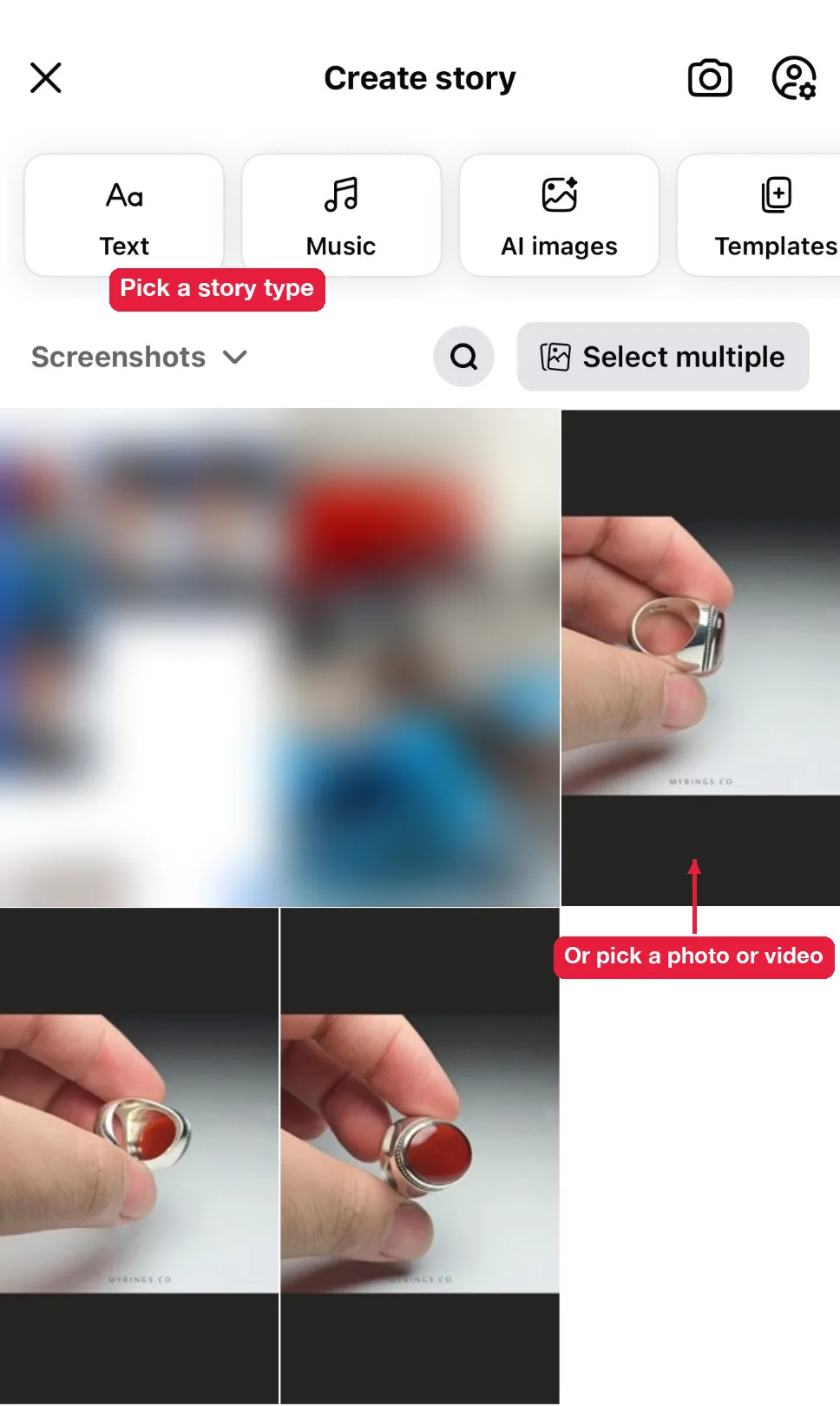
- Tap Create story at the top of your Feed.
- Pick a photo or video from your camera roll, or tap a format at the top: Text, Music, AI images or Templates.
- Edit it with stickers, text, music or effects.
- Tap Share to story.
Before you share, tap the audience setting (it usually says Public or Friends) to choose who sees it.
Can you schedule a story? Only for Pages. Meta Business Suite has a schedule option for Page stories, but personal profiles can only post right away.
What types of Facebook stories can you create?
You can create 5 main types of Facebook stories:
- Photo stories, which show for about 5 seconds each.
- Video stories, which Facebook trims on the edit screen if they’re too long.
- Text stories, with a colored background and your own words.
- Music stories, with a song and optional lyrics on screen.
- Boomerang and selfie stories, recorded with the camera inside the app.
Every type can include stickers such as polls, questions, locations and, on some accounts, links.
How do you add multiple photos to one Facebook story?
You add multiple photos by turning on multi-select before you pick them.
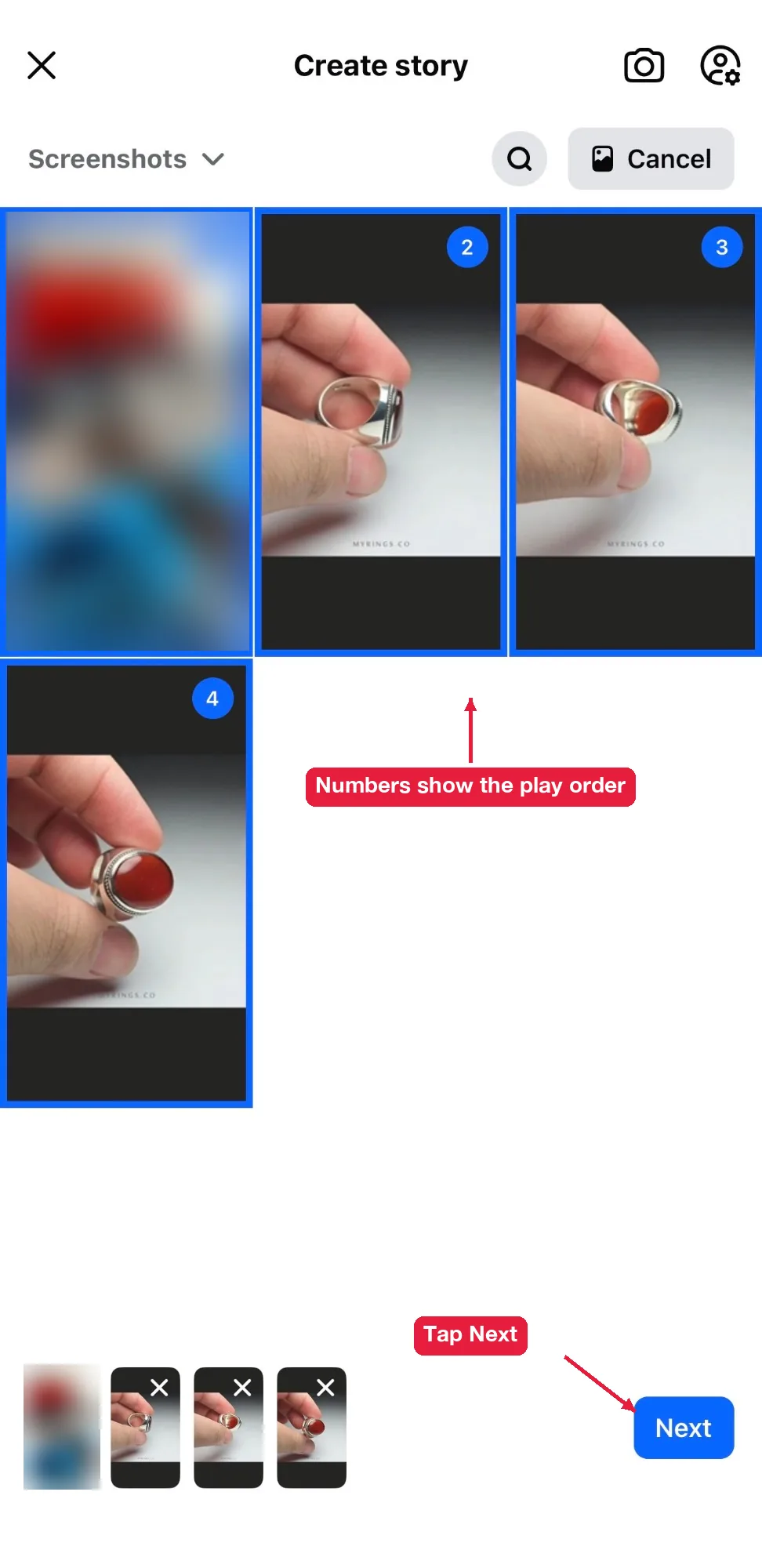
- Tap Create story.
- Tap Select multiple above your camera roll.
- Tap each photo in the order you want them to play.
- Tap Next, edit each photo, then tap Share to story.
Each photo becomes its own story card, played one after another. If you want them on one screen instead, look for a Layout or collage option on the edit screen. Not every account has it.
How do you create a story for a Facebook Page or business?
You create a Page story by switching to the Page first, or by using Meta Business Suite.
From the Facebook app:
- Tap your profile picture and switch to your Page.
- Tap Create story at the top of the Page’s Feed.
- Build the story and tap Share to story.
From Meta Business Suite (phone or computer):
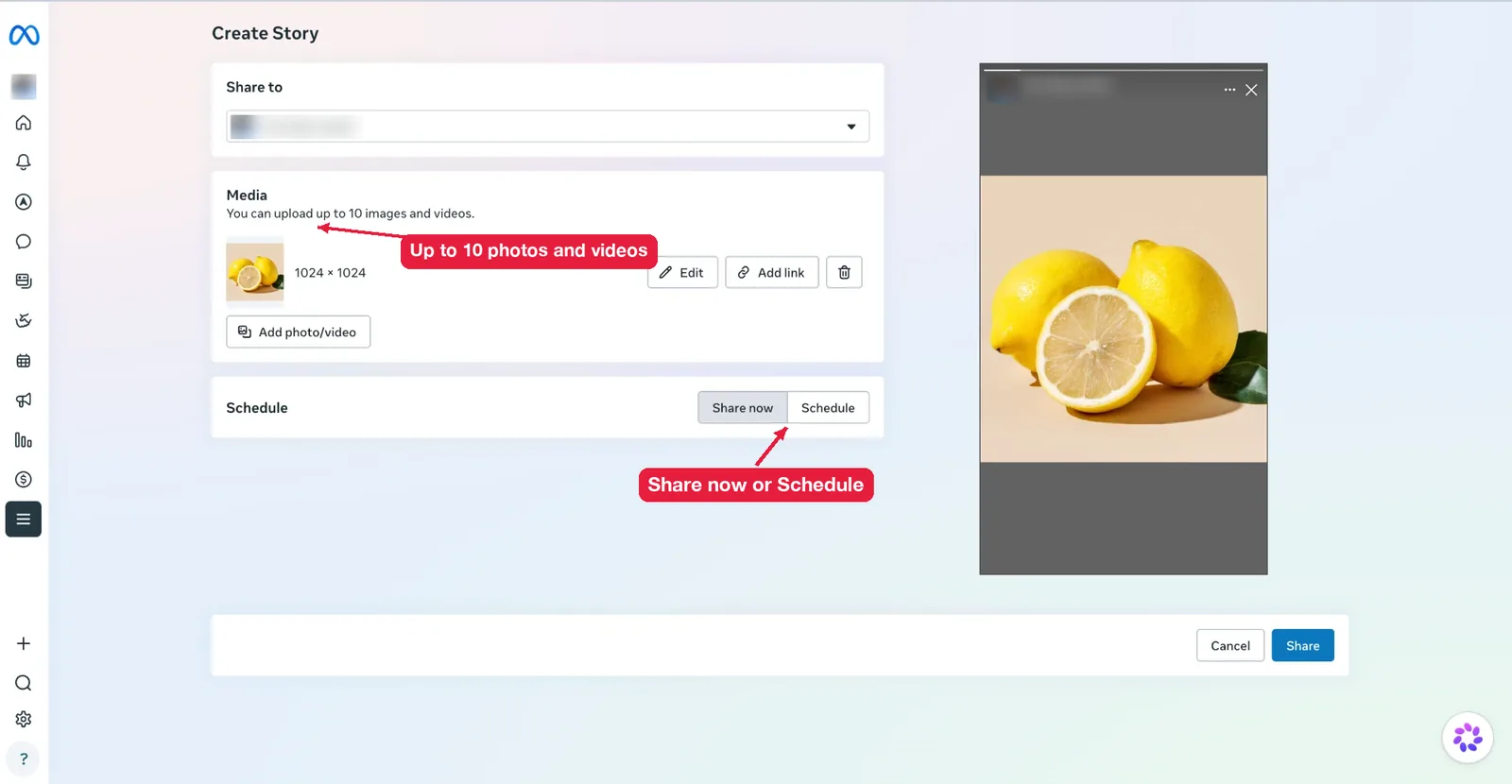
- Open Meta Business Suite and pick your Page.
- Tap Create, then Story.
- Pick the Page under Share to, then add up to 10 photos and videos under Media. Each one has an Add link button.
- Choose Share now or Schedule, then tap Share.
Using professional mode on a personal profile? Follow the profile steps above. The only difference is that you get story insights afterward, like reach and replies.
Business Suite is the better option for Pages. It lets you schedule stories, post the same story to a linked Instagram account, and see insights like reach and replies afterward.
How do you post a Facebook story from a PC or Mac?
You post a story from a computer on facebook.com, in any browser.
- Go to facebook.com and click Create story in the stories row.
- Choose Create a photo or video story or Create a Text Story.
- Upload a photo from your computer, or type your text.
- Click Share to story.
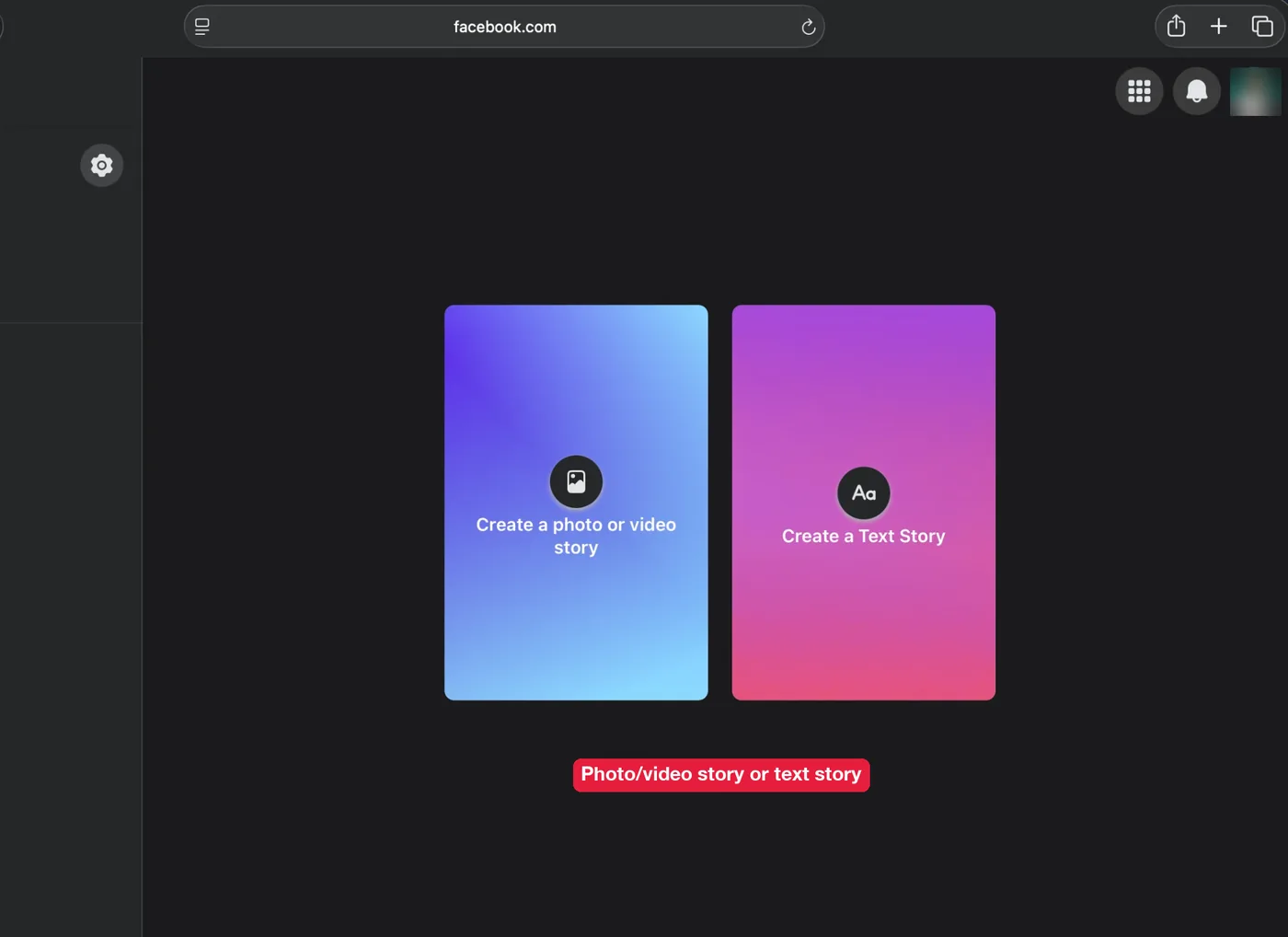
The desktop editor has fewer tools. You won’t get music or most stickers, so build anything complex on your phone.
What should you do after creating your story?
After you create your story, check 5 things: sound, links, size, audience and how it looks to the public. Each one changes how many people watch it to the end.
Know how long it stays up
Your story stays live for 24 hours, then moves to your private archive if archiving is turned on. Post when your audience is most active, because a story posted at 2 a.m. loses part of its 24 hours to people sleeping.
Add a song
A story with sound holds attention longer than a silent one. Here’s how to add music to a Facebook story, including what to do when the Music option is missing.
Add a link
Links send viewers somewhere else, like your shop or a blog post. Pages get a link sticker, and profiles have workarounds. See how to add a link to a Facebook story.
Check the size
Stories fill a 9:16 phone screen. Anything outside that frame gets cropped, so check the right Facebook story size before you design.
Pick your audience
Public stories reach followers and people outside your friends list. You can control who can see your Facebook story for each story or as a default.
Fix mistakes
You can’t edit a story after you post it. Text, stickers and music are locked in. The fix is to delete a Facebook story and post a corrected version, which takes under a minute.
Reuse posts and Instagram stories
You don’t always have to make a story from scratch. You can share a Feed post to your story, or cross-post your Instagram stories automatically. Here’s how to share a post to your Facebook story both ways.
Check what the public sees
Want to see your story the way a stranger does? Paste your profile link into a public Facebook story viewer. If your story shows there, it’s public. If it doesn’t, only your chosen audience can see it.