Facebook Story Size: Dimensions, Safe Zones and Canva Templates
Facebook stories are 1080 x 1920 pixels (9:16). Here are the safe zones, file specs, and the exact steps to design a story in Canva with a template.

By Ayu Moz
Writer, Facebook Story Viewer
Last updated:

5 min read
The Facebook story size is 1080 x 1920 pixels with a 9:16 aspect ratio. That’s a full vertical phone screen. Keep your text and logos inside the middle area, because Facebook covers roughly the top and bottom 250 pixels with your name, the progress bar and the reply box.
Below are the full specs, the safe zone, and the exact steps to design a story in Canva.
What is the Facebook story size?
The Facebook story size is 1080 x 1920 pixels for both photos and videos. Here are the specs in one place:
| Spec | Photo story | Video story |
|---|---|---|
| Recommended size | 1080 x 1920 px | 1080 x 1920 px |
| Aspect ratio | 9:16 | 9:16 |
| File types | JPG, PNG | MP4, MOV |
| How long it shows | About 5 seconds | Length of the clip (the app trims long videos) |
| Text-safe area | Middle 1080 x 1420 px | Middle 1080 x 1420 px |
Video length depends on how you upload. The app shows a trim screen when a video is too long, so you choose which part stays. For anything longer, split it into several clips and post them in order.
What is the Facebook story safe zone?
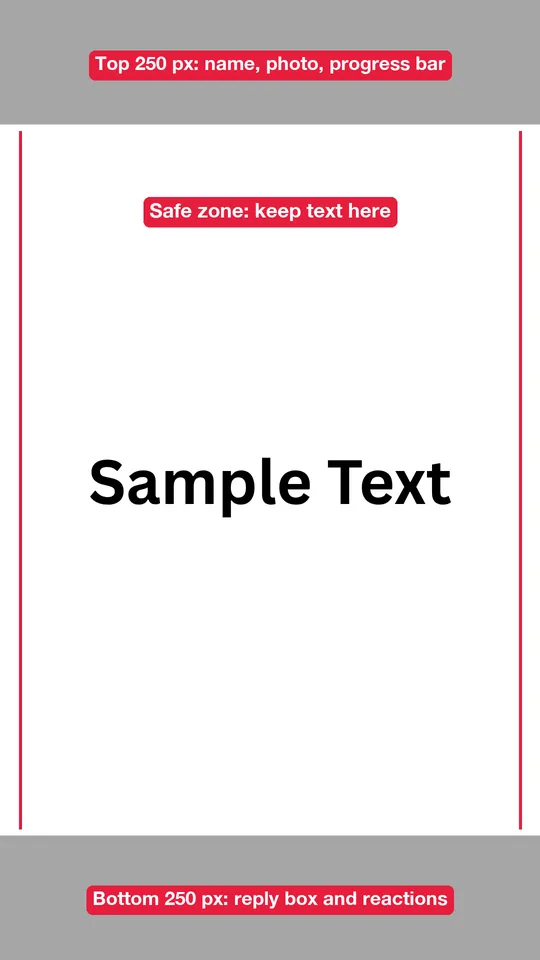
The safe zone is the middle part of the story that Facebook never covers. Leave about 250 pixels free at the top and 250 pixels at the bottom, which is roughly 13 percent of the height on each side.
- The top 250 px has your profile photo, your name, the time and the progress bar.
- The bottom 250 px has the reply box and reaction buttons.
- The sides are safe, but keep about 60 px of space so text doesn’t touch the edge.
Stickers count too. If you plan to add a link to a Facebook story, leave an empty spot in the middle third for the link sticker.
What happens if your image isn’t 9:16?
If your image isn’t 9:16, Facebook either crops it or fills the empty space. A square photo gets a colored or blurred background above and below. A wide landscape photo shows as a small strip in the middle. Neither looks good, so resize first.
The fix takes 10 seconds in any design tool: place your photo on a 1080 x 1920 canvas and fill the background with a matching color.
How do you design a Facebook story in Canva?
You design a Facebook story in Canva by starting from the Facebook Story size, editing a template, and downloading the file.
- Open Canva and click Create a design.
- Search for Facebook Story. It opens a 1080 x 1920 px canvas.
- Click Templates on the left and search for a theme, like “sale” or “quote.”
- Click a template to add it to your canvas.
- Replace the text, photos and colors with your own.
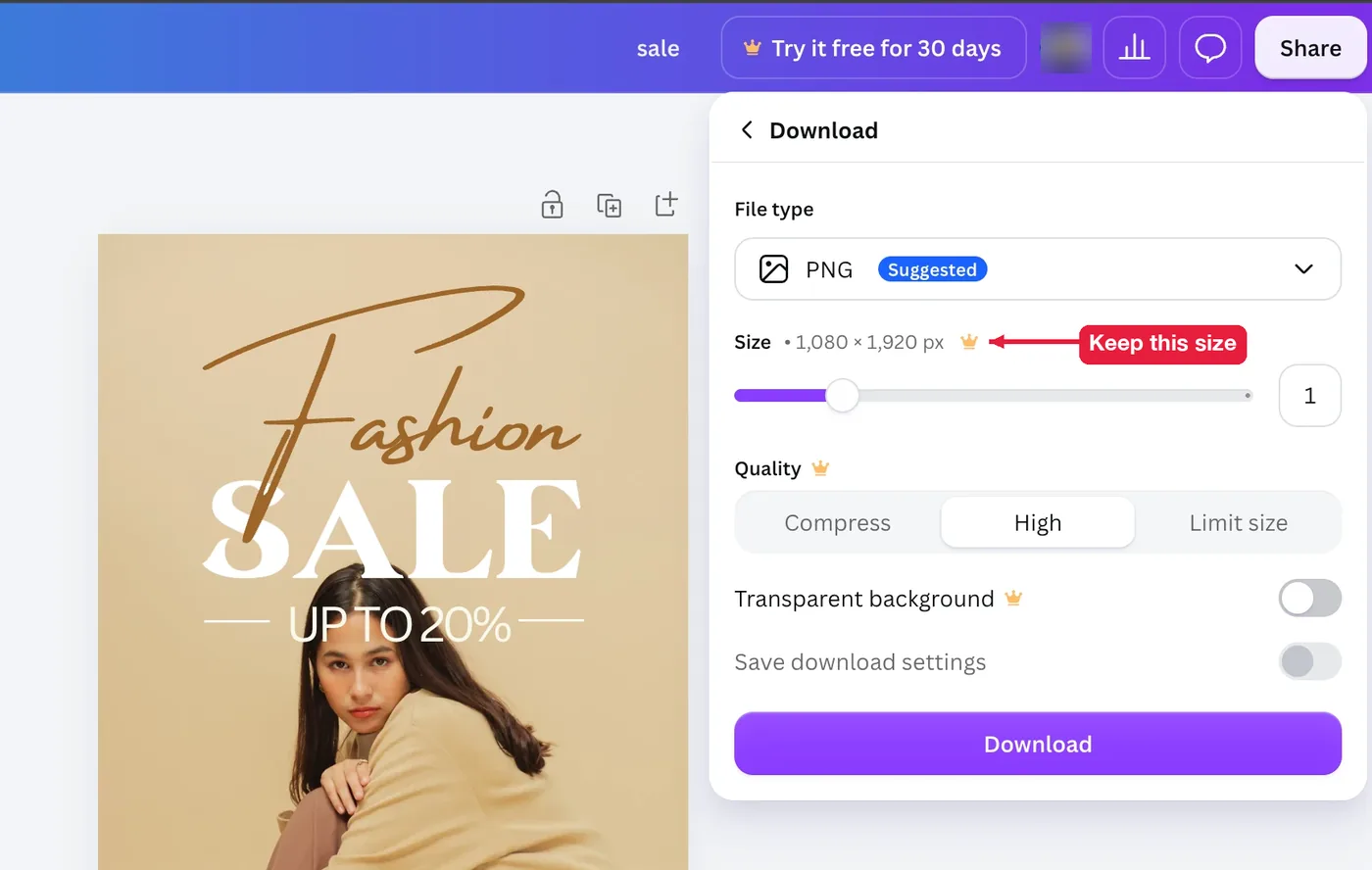
- Click Share, then Download. Pick PNG for a still story or MP4 Video for an animated one.
- Send the file to your phone and upload it the same way you post a Facebook story.
Here’s a fashion sale template after editing. The headline sits below the top band and the button sits above the bottom band, so nothing gets covered.

When the design is ready, click Share in the top right, then Download.
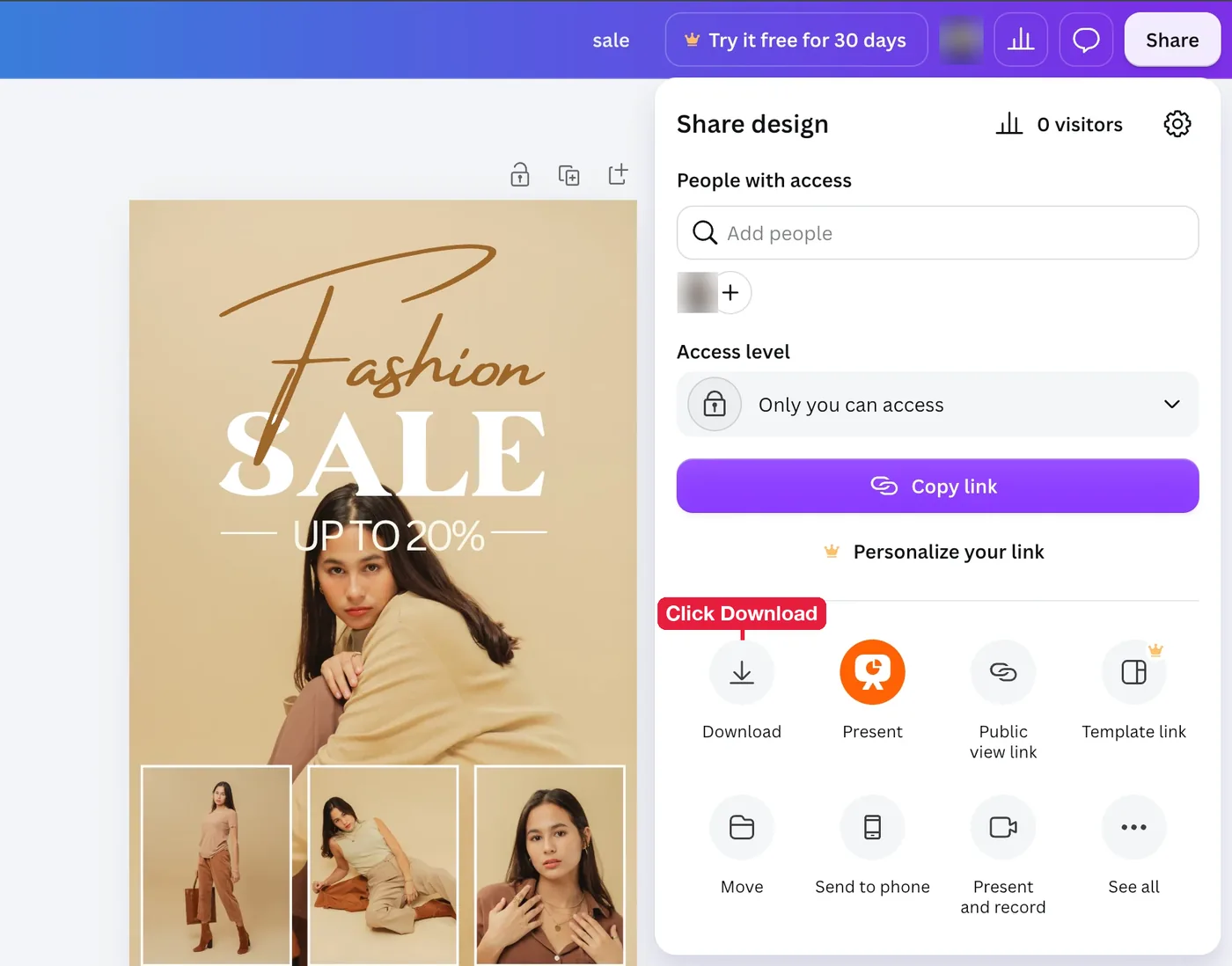
On the Download screen, keep the file type at PNG and the size at 1,080 x 1,920 px. Options with a crown, like changing the size or quality, need Canva Pro, but the default settings are already right for Facebook.
The Canva phone app works the same way, and it saves the file straight to your camera roll, which skips step 7. The free Canva plan covers everything above. Paid plans add things like brand kits and one-click resizing.
How do you pick a good Facebook story template?
A good Facebook story template keeps the important parts in the safe zone and leaves room for your own photo. Most templates look great in the editor and fail on a real phone, so check them before you commit.
5 checks for a template
Run these 5 checks on any template, from Canva or anywhere else:
- Text stays in the middle 1420 px. Nothing important near the top or bottom edge.
- Fonts are readable on a phone. Headlines at 60 px or larger work well.
- There’s 1 main message per story card. Templates with 4 blocks of text get skipped.
- Colors match your brand, or can be changed in 1 click.
- There’s empty space for stickers, like polls or links.
How do you turn your design into your own template?
Once a design works, duplicate it for every new story and only change the photo and text. Same fonts, same colors, same layout. People recognize your stories before they read them, which helps your content strategy for Facebook stories far more than a new design every day.
Can you post from Canva straight to Facebook?
Sometimes. Canva can connect to Facebook Pages from its Share menu, but story posting depends on your account and plan. Downloading the file and uploading it from your phone works every time.
Does Facebook compress story images?
Yes. Facebook compresses every story to load fast on phones. You can’t stop it, but you can limit the damage: upload at exactly 1080 x 1920 px, use PNG for designs with text, and don’t upload screenshots of screenshots, because each round loses more detail.
Is the Facebook story size the same as the Instagram story size?
Yes. Both use 1080 x 1920 px at 9:16, with similar safe zones. One design works on both. The bigger differences are in features and audience, covered in Facebook Stories vs Instagram Stories.
Is the size different for Facebook story ads?
No, ads use the same 9:16 ratio. 1080 x 1920 px works, and Meta’s ad specs also list 1440 x 2560 px for sharper ads. The safe zone is the same. Here’s the full setup for Facebook story ads.