How to Share a Post or Instagram Story to Your Facebook Story
Share any Feed post to your Facebook story in 2 taps, and set Instagram to post your stories to Facebook automatically. Plus fixes when Share is missing.

By Ayu Moz
Writer, Facebook Story Viewer
Last updated:

5 min read
To share a post to your Facebook story, tap Share below the post and choose Your story. To share Instagram stories automatically, turn on story sharing in Meta’s Accounts Center, and every Instagram story you post goes to Facebook too.
Both methods save you from making a story from scratch. If you want to build one yourself instead, here’s how to create a Facebook story.
How do you share a Facebook post to your story?
You share a Facebook post to your story from the Share button under the post.
- Find the post in your Feed, on a Page, or on your own profile.
- Tap Share below the post.
- Tap Your story in the share options. On a computer, click Share to your story.
- Add text, stickers or a background color if you want.
- Tap Share now or Share to story.
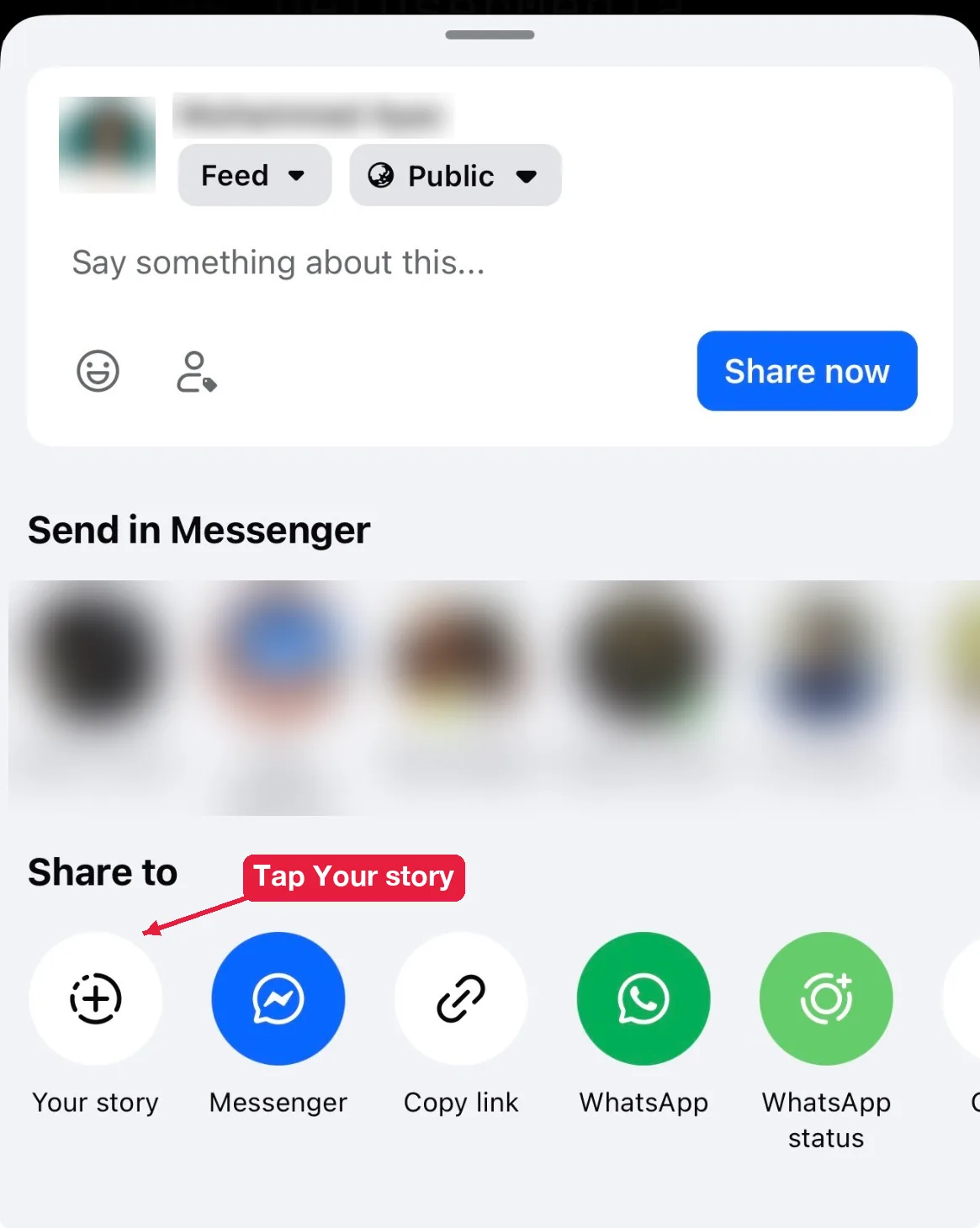
The post shows as a card inside your story. Viewers tap it to open the original post, with its comments and reactions.
Before you share, you can drag the card to move it, pinch it to resize it, and tap the background to change its color. A bigger card in the middle of the screen gets more taps than a small one in the corner.
Sharing a post with no sound? You can add music to a Facebook story on the same editing screen before you tap Share.
Which posts can you share to your story?
You can share 4 kinds of content to your story:
- Public posts from friends, Pages and public figures.
- Your own posts, whatever their audience.
- Reels and videos that have sharing turned on.
- Events and fundraisers that are public.
You can’t share posts from private groups or posts with a friends-only audience that isn’t yours. And if the original post gets deleted, it disappears from your story too.
How do you share Instagram stories to Facebook automatically?
You share Instagram stories automatically by linking both accounts in Accounts Center and turning on story sharing.
- Open Instagram and go to your profile.
- Tap the three lines in the top-right corner, then Accounts Center.
- Tap Accounts, then Add accounts, and log in to Facebook if it isn’t linked yet.
- Go back to Accounts Center and tap Sharing across profiles.
- Pick your Instagram account as the source and your Facebook profile or Page as the destination.
- Turn on Share your Instagram story.
There’s also a quicker switch inside Instagram once the accounts are linked. Start a new Instagram story, tap the gear icon to open the Story settings, and turn on Share your story to Facebook under Sharing.
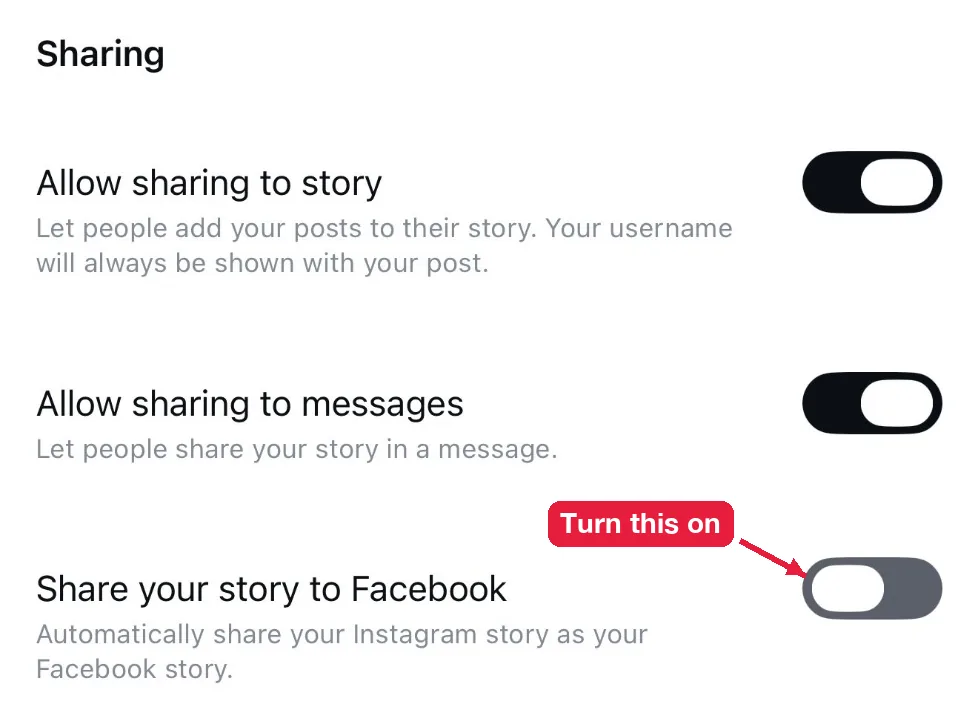
From now on, every Instagram story also goes to your Facebook story. You can turn it off the same way.
Not sure the two platforms need the same content? Audiences, features and reach differ. Here’s how Facebook Stories vs Instagram Stories compare.
How do you share just one Instagram story to Facebook?
You share a single Instagram story with the sharing option on the posting screen.
- Create your Instagram story as usual.
- Before you post, tap the arrow or Share options at the bottom.
- Turn on sharing to your Facebook story for this post.
- Tap Share.
Don’t see the Facebook option? Your accounts aren’t linked yet. Go back to the Accounts Center steps above and link them first.
This is the better choice if you only want some stories on Facebook, like product launches, and not every daily update.
What happens after you share to your story?
After you share, the content shows in your story for 24 hours, with a link back to the original. Here’s what that means for you and for the person who posted it first.
Does the original poster see your share?
Often, yes. The original poster can see public shares in their post’s share list, and Facebook sometimes notifies them. If you’d rather they didn’t know, don’t share it.
Can you share a post to your Page’s story?
Yes. Switch to your Page first, then share the post the same way. The post goes to the Page’s story instead of your personal one. This works well for sharing customer posts that tag your business, as long as the customer’s post is public.
Does sharing to your story notify your friends?
No. Your friends don’t get a notification. The shared post simply shows up in their stories tray like any other story you post.
Can you share someone else’s story to your story?
Only in one case: when they mention you in their story. Facebook notifies you about the mention, and you can tap Add to your story to reshare it. For any other story, you can’t reshare it directly.
Why is the Share to story option missing?
The option is missing when the original post isn’t public, when it’s from a private group, or when the poster turned off sharing. Your app version matters too. Update Facebook and try again. If it’s still missing, ask the person if you can post a screenshot of it as a photo story, and credit them.
Can you stop people from sharing your stories?
Yes. In your story settings, turn off the option that lets people share your public stories to their own stories. Switching from Public to Friends also limits who can see and share them. Here’s how to control who can see your Facebook story step by step.
Do Facebook and Instagram count views separately?
Yes. A cross-posted story has two separate audiences and two separate viewer lists. Check your Instagram viewers in Instagram, and your Facebook viewers in the Facebook story viewer list. Someone who follows you on both might watch it twice.